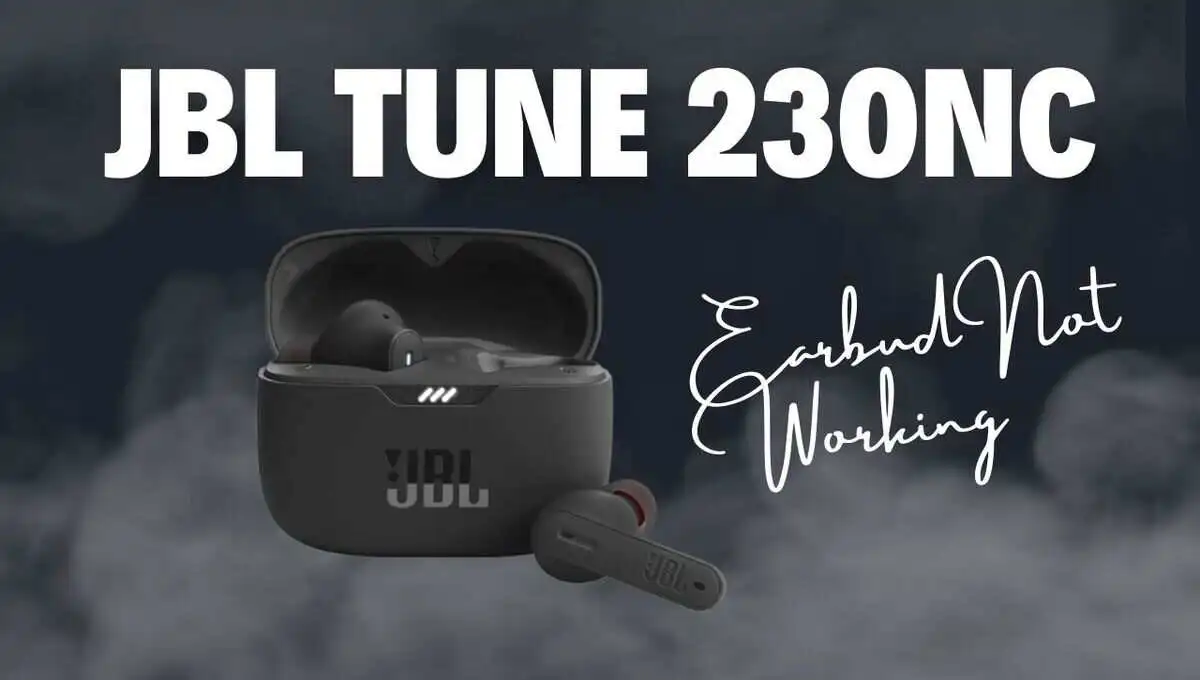
Many users experience common JBL Tune 230NC TWS problems, such as the left earbud not working, charging issues, pairing failures, or noise cancellation not functioning properly.
The good news is that most of these problems can be fixed at home without professional repair.
In this guide, I’ll walk you through practical troubleshooting steps, based on real user issues, to help restore your JBL Tune 230NC earbuds.
Quick Fixes You Must Try First
JBL Tune 230NC earbuds come with a one-year manufacturer warranty, so if your warranty period hasn’t expired yet, claiming a free replacement or repair should always be your first step. Many users overlook this and end up paying for fixes that JBL would have covered.
Based on long-term user reports and typical lithium-battery wear, the average lifespan of the JBL Tune 230NC is around 1 year and 8 months. This is actually better than brands like JLab, Occiam, and Otium, which often start failing earlier. However, most JBL Tune 230NC units begin showing issues, battery drain, charging problems, or one earbud cutting out, around the 1 year and 4 month mark, which is normal for true wireless earbuds.
If you’ve already been using your JBL Tune 230NC earbuds for about 1.2 years, you’ve gotten solid value from them. At this stage, though, frequent repairs rarely provide long-term solutions. Internal batteries and charging contacts degrade over time, and fixing one issue often leads to another appearing soon after.
Smart advice before spending on repairs: Instead of investing money and time into repeated fixes, it’s usually more cost-effective to upgrade to a new pair of earbuds or headphones. Newer models offer improved battery life, better ANC, and more durable charging cases, solving the very problems older earbuds develop.
How to Reset JBL Tune 230NC Earbuds (Most Effective Fix)
A reset fixes many problems, including:
- One earbud not working
- Pairing issues
- Sound imbalance
Reset Steps:
- Take both earbuds out of the charging case and place them on a flat surface.
- On the right earbud, tap the touch sensor twice, then press and hold for 5 seconds until you hear a beep.
- Both earbuds will flash red and turn off.
- Put both earbuds back into the charging case for 15 seconds.
- Remove them, the earbuds are now reset to factory settings.
Note:
- All paired devices will be removed
- Audio files and phone settings are not affected
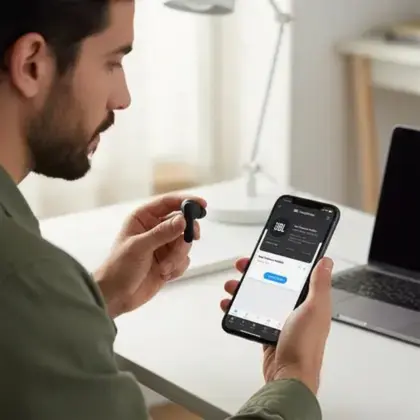
Update the Firmware Using JBL Headphones App
Outdated firmware can cause:
- Connection drops
- ANC not working
- One earbud not responding
How to Update:
- Install the JBL Headphones App (Android or iOS)
- Connect your JBL Tune 230NC earbuds
- Check for available firmware updates
- Download and install the update
- The earbuds will restart automatically
After updates, some features may turn on by default (ANC, Ambient Mode). Disable unnecessary features if battery drains faster.
1. One Earbud Not Turning On:
If your JBL Tune 230NC earbuds don’t turn on or one side produces no sound, the problem is usually related to charging issues or a temporary technical glitch. Even if you are confident the earbuds are charged, they can sometimes get stuck in a sleep state or fail to connect properly due to minor software hiccups.
For earbuds that won’t turn on at all and show no blinking LED, start by placing them in the charging case and connecting the case to a power source. After just a second or two, remove the earbuds and check if they power up. Often, this quick power-cycle is enough to wake up earbuds that were unresponsive. If the earbuds still don’t turn on, try using the touch controls to turn them on manually.
If they remain unresponsive, the battery may be deeply discharged or the charging contacts might not be making proper connection, in which case you should follow the battery and charging troubleshooting steps in the next section.
2. No Sound:
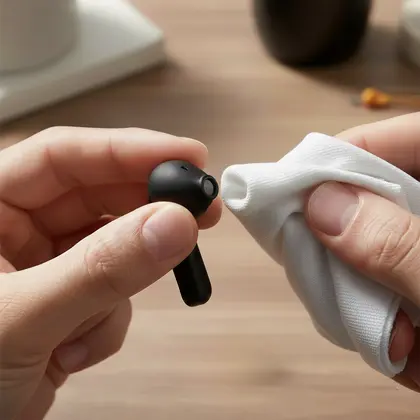
If one earbud connects but produces no sound, the issue is often caused by a blockage in the sound outlet, particularly on the right side. Remove the silicone ear tip, gently blow or suck air across the metal sound grill, and wipe it clean. Repeating this process a few times usually clears any dust, earwax, or moisture that may be interfering with sound output. Avoid using sharp objects, as these can permanently damage the internal mesh.
In addition, it’s worth checking your phone’s audio settings. Sometimes, the issue is not with the earbuds themselves but with audio balance or mono audio settings. Ensure the balance slider is centered and mono audio is turned off. Reconnecting the earbuds from scratch by forgetting them in your Bluetooth settings and pairing again can also fix one-sided sound issues. Testing each earbud individually can help you determine whether the problem is with a specific earbud or a pairing/sync issue.
Most of these fixes work best when one earbud is silent, the LED doesn’t appear, or the earbuds have been unused for several days.
However, if the earbud never lights up, charging does not work even after trying manual fixes, or sound remains completely dead after cleaning, the problem is likely due to battery degradation or internal hardware failure, and further troubleshooting may not be cost-effective.
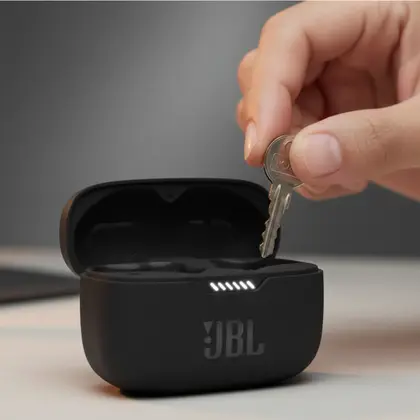
3. Not Charging (Earbud or Case)
If one of your JBL Tune 230NC earbuds, most commonly the right earbud, appears completely dead (no LED, not charging, not detected by the app), the issue is often not a failed battery, but a charging contact that has stopped registering properly.
Over time, dust, oxidation, or a minor power glitch can prevent the charging case from recognizing the earbud. When that happens, the earbud doesn’t “wake up,” even though the battery itself may still be functional.
What You Can Try (Manual Contact Reset):
-
Open the charging case without placing the earbuds inside
-
Using a small metal object (such as a key tip or a flat screwdriver), gently touch both charging pins inside the case at the same time
-
If done correctly, the case LED should blink briefly
- This indicates the charging circuit has reactivated
-
Now place the earbuds back into the case
-
Press the problematic earbud gently downward to ensure full contact
-
Close the lid and allow the earbuds to charge normally
Many users find that the LED turns on again and charging resumes immediately. Manual contact fix works for ~80% of cases where one earbud won’t charge, but if it doesn’t, the battery may be degraded.”
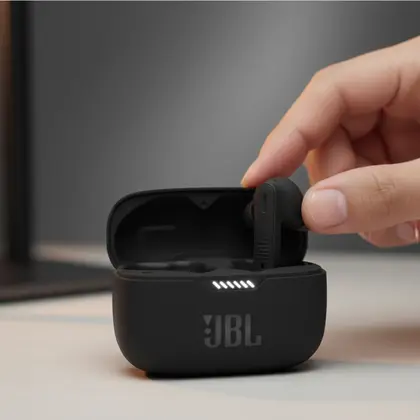
Why Gently Pressing the Earbud Helps:
Over time, the internal spring contacts in the charging case can loosen slightly due to regular use. Applying light pressure on the earbuds while they are in the case helps ensure that the charging pins make proper contact with the earbud terminals. This simple step often restores power flow to an earbud that appears “dead,” allowing it to charge and function again.
This method works best in situations where one earbud shows no light at all, fails to respond to resets, is not detected by the JBL app, or has been inactive for several days or even weeks. While it is generally a low-risk workaround, it is important to use gentle contact only and avoid scratching or forcing the pins. Sharp or oversized metal tools should be avoided, as they can damage the charging contacts. Additionally, using a high-quality, certified charging cable can make a significant difference, as cheap or worn-out cables often cause slow, incomplete, or intermittent charging.
4. Noise Cancellation (ANC) Not Working:
If the Active Noise Cancellation (ANC) feels weak or seems completely nonfunctional, the problem is often due to blocked sensors or dirty earbuds. Thoroughly cleaning the earbuds and ensuring that the IR sensors are clear of dirt or debris can dramatically improve ANC performance. In many cases, performing a reset and updating the firmware via the JBL app resolves lingering issues.
Dirt or minor obstructions on the sensors are one of the most overlooked causes of poor ANC performance, so a careful cleaning can make a noticeable difference.
5. Pairing & Connectivity Problems:
Pairing problems are one of the most common issues JBL Tune 230NC users encounter. Often, these problems are not due to hardware failure but arise from outdated firmware, residual Bluetooth connections, or minor software glitches. Before attempting anything complex, it’s always a good idea to update the earbuds via the JBL app and perform a full reset to factory settings. These steps alone resolve the majority of pairing issues.
If the earbuds still won’t connect, checking device compatibility is the next step, as certain older phones or software versions can occasionally prevent proper pairing. Additionally, ensure that only one device is actively trying to connect during setup, as previous connections can interfere. Turning off Bluetooth on other nearby devices or forgetting old connections on your phone often clears these conflicts.
Lastly, consider your environment: pairing in an area free from heavy wireless interference, such as Wi-Fi routers or other Bluetooth devices, can significantly improve success. By following these steps carefully, most users can resolve left or right earbud connectivity issues without needing professional repair.
Best Practices to Avoid Future Issues
- Always store earbuds in the charging case
- Clean earbuds weekly
- Avoid extreme heat or cold
- Keep firmware updated
- Use original or certified charging accessories
- Contact Customer Support before warranty ends.
Final Verdict
JBL Tune 230NC earbuds offer excellent features like ANC and solid sound quality, but like all true wireless earbuds, they can develop issues over time.
Most problems, including left earbud not working, charging failure, ANC issues, and pairing problems, can be fixed using the steps above.
If none of the solutions work and your earbuds are under warranty, contacting JBL customer support is the best option.