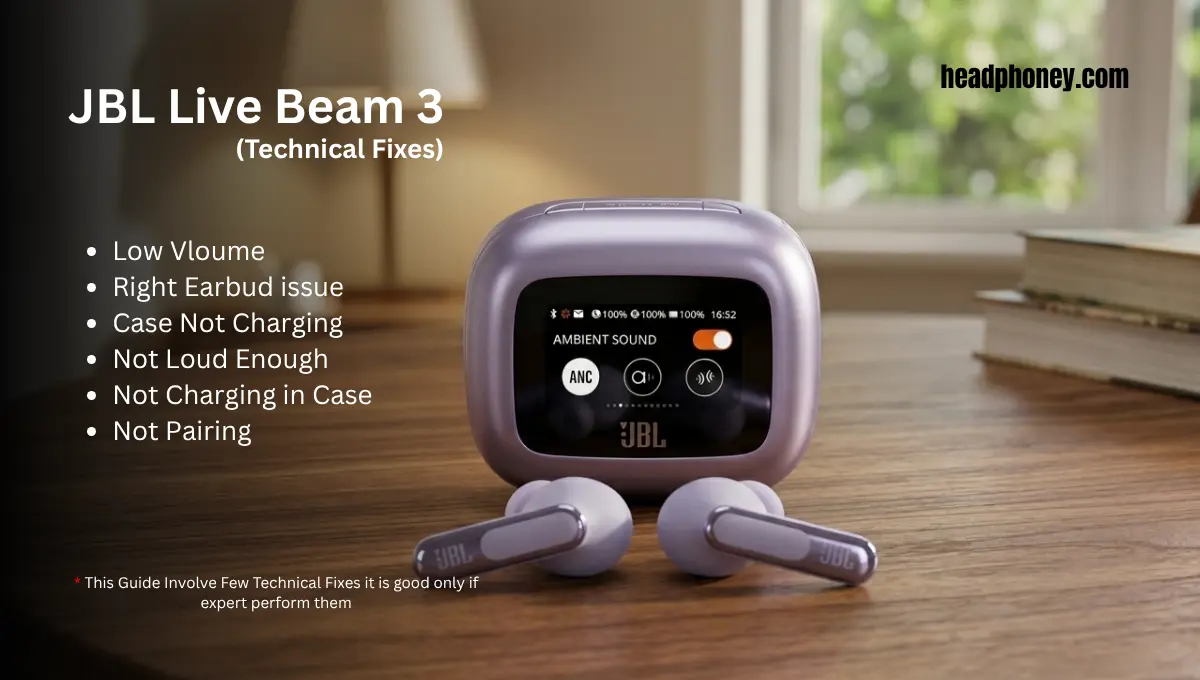
Many users buy the JBL Live Beam 3 expecting smooth performance, strong sound, and reliable connectivity. But after daily use, some common issues start appearing that can feel frustrating, especially when the earbuds suddenly stop working as expected.
From earbuds not turning on, to charging problems, weak sound, or Bluetooth instability, these issues are more common than most people think. The good news is that most of them can be fixed with simple steps, while a few may require deeper technical attention.
This guide explains JBL Live Beam 3 not working problems in detail, with real-world fixes and technician-level insights based on how the internal system of these earbuds actually works.
Not Turning On:
If neither earbud powers on at all, and the case shows no output on its screen, start with the simplest checks. First, ensure the case itself is charged (the case battery must be above 20% for the earbuds to charge). Plug it into a charger and wait – the case’s LED or screen should light up, indicating it is receiving power. If the case is dead, try a different cable or charger (use a USB-C cable known good). Once the case is charged, place both earbuds in and see if they light up. If they still refuse to wake, do the factory reset described above.
Sometimes a firmware freeze or Bluetooth bug can make earbuds appear dead; a hard reset often revives them. Also try pressing the button on the back of the case (if present) for 10 seconds to reboot the case’s electronics. On some models, holding the case button resets the system.
For those comfortable with tech, there are internal factors to consider. The Live Beam 3 uses tiny lithium cells (about 40–50 mAh each) in the buds and a larger cell in the case (often 500-600 mAh). If one of those batteries has failed completely, the earbuds won’t turn on even if the case is charged. A technician might open the case to test the case battery voltage (should be ~4.2 V when full) or test each earbud cell (should be ~3.7 V each).
Sometimes the contact springs in the case lose tension or become corroded, so the earbuds never charge and thus never wake. If you see the case’s screen flickering or showing errors, it could be a faulty touch sensor or ribbon cable (the Beam 3 has a 1.45″ display on the case). Repairing that requires disassembly and possibly replacing the display or its flex cable. In short: a no-power issue could be as simple as a dead battery or as complex as a broken PCB inside the case. If all standard fixes fail, consult JBL support or an authorised service centre to diagnose the internal hardware.
JBL Live Beam 3 Connection Issues
Bluetooth pairing and connectivity problems are another frequent complaint. If the earbuds won’t pair or keep dropping connections, start with a reset. Forget the “JBL Live Beam 3” entry on your phone or tablet and turn Bluetooth off and on again. Then put the earbuds back in the case, open the case to enter pairing mode (the case’s screen usually prompts for pairing), and re-pair. For multipoint (connecting two devices), follow JBL’s official steps carefully: connect the first device, then on the second device open Bluetooth settings and long-press both earbuds’ touch panels until they say “pairing”.
Some users found that you must disconnect the first device (but leave Bluetooth on) before long-tapping the earbuds to pair the second device. This two-step process ensures both devices can connect. Make sure you have the latest firmware: open the JBL Headphones app, let it check for updates, and install any new software. An outdated Bluetooth firmware can fail to recognize new devices. Also, keep devices close together (within 10m, line-of-sight) and away from Wi-Fi routers or microwave ovens that can interfere.
Typical non-tech fixes often solve Bluetooth troubles. But if your Beam 3 still “won’t stay connected,” a technician’s insight may help. Internally, the Live Beam 3 earbuds communicate via a dual-Bluetooth chipset (likely supporting aptX and AAC). The left and right buds synchronize audio, so if one bud’s Bluetooth radio is weak, you could hear stuttering or silence on that side.
The earbud antenna runs up the stem, so damage or detachment there could disrupt signal. A repair shop might open a bud to check for damage or a loose antenna trace. They could also update or re-flash the Bluetooth module firmware directly, if the app-level update didn’t take. In rare cases, the case’s Bluetooth chip (which coordinates connections) might fail – you might notice that only one earbud works or audio only plays when the case is open. Diagnosing that requires test jigs and original JBL parts. In practice, such cases are often resolved by firmware patches or replacing a faulty motherboard in the case.
JBL Live Beam 3 Charging Problems
Many Beam 3 issues come down to charging. If earbuds or case refuse to charge fully, double-check the basics: use the supplied USB-C cable or a high-quality cable with a known good charger. Ensure the USB port or charger isn’t intermittent. Then clean all the charging points, on each earbud and inside the case, as described earlier. Even a thin film of sweat or earwax can stop charging. A drop of isopropyl alcohol on a swab can dissolve grime on those gold-plated contacts. Always let the contacts dry completely before retrying.
After cleaning, if one bud still won’t charge, swap the earbuds left-right in the case. If the same bud stays dead, the fault is likely in the earbud (its battery or internal wiring). If that bud charges in the other slot, the original charging pin or cradle on that side of the case may be damaged. If the case itself isn’t charging from USB, inspect the Type-C port: debris or a bent pin could be to blame. Gently clean the port or replace the cable.
When simple fixes fail, internal repair may be needed. Inside the Beam 3 case, there is a small Li-ion battery and a charging controller chip. A technician can measure the case battery voltage (should be around 4.2 V at full charge). If the case battery itself is dead (common after 1–2 years of heavy use), the earbuds will never charge. Replacing the case battery (a soldered pouch cell) can fix this, but it requires delicate disassembly. Similarly, the earbuds each have a coin-cell style battery and a tiny PCB. If an earbud’s battery has failed (no voltage), the solution is to desolder the old cell and fit a replacement.
Another internal issue: the Live Beam 3 case has a touchscreen display and unlock mechanism. Some users reported the case screen freezing (swipes or taps not registering). This can prevent charging if the case remains locked. The fix may be a case firmware reinstall or replacing the touch sensor. In rare cases, moisture sensors (designed to protect the buds from charging in a wet case) can fail, thinking water is present and stopping charge. A repair tech might open the case and check the gold-plated inlet for corrosion. If a sensor is shorted or a PCB trace is broken, only component-level repair can fix it.
In summary for charging: always keep contacts clean and firmware updated. If an earbud or case still won’t charge, the likely culprits are failed batteries or damaged pins, repairs that require soldering inside the case or buds. If your earbuds are under warranty (or close to it), contact JBL support first. Otherwise, consider a qualified repair service (see below) to replace faulty internal parts.
Low Volume or Sound Issues
Some Beam 3 owners find the sound “not loud enough,” even at maximum volume. First check your source device: is its volume limit or EQ set low? On Android or iPhone, there can be separate volume levels for media versus calls. Also try raising volume using the smart case controls – the Beam 3 case has its own volume slider independent of your phone. In a few cases we saw online, turning up volume via the case controls made sound noticeably louder than using the phone volume.
Next, verify the JBL Headphones app settings. The Beam 3 supports a volume limiter for hearing safety – ensure it’s disabled. Also try toggling off Active Noise Cancellation (ANC) or VoiceAware features in the app and see if volume improves. The equalizer (Personi-Fi) can accidentally depress certain frequencies; reset the EQ or try the “Normal” sound profile to ensure you aren’t capping the output. Good ear-tips and fit are crucial: a poor seal will make everything sound quieter. Try all ear-tip sizes to seal out ambient noise (ironically, better ANC does sometimes make music seem quieter if the seal is off).
If volume still seems low for a high-end earbud, remember that headphone loudness is limited by driver size and power. The Beam 3 uses 10 mm dynamic drivers which generally don’t match the SPL of larger wired headphones. However, they should still be loud enough for typical use. If one bud sounds much quieter than the other, it could signal a fault. A tech might measure the audio driver’s impedance; a shorted voice coil or torn diaphragm could reduce output. They might also check the internal amplifier chip on the earbud’s board – if it’s malfunctioning, replacing it could restore volume (though that’s quite advanced).
In practice, low volume problems have been resolved by simple fixes. Several users reported that a factory reset fixed the volume glitch (oddly, it reset some software limit). Others found success by plugging into the app on a different phone (suggesting a phone-side issue). If none of these work, an authorized repair may be needed: perhaps the amplifier IC inside the earbud needs replacement.
JBL Live Beam 3 Firmware Bugs and Updates
Finally, the Beam 3’s sophisticated software can have its own bugs. JBL periodically releases firmware updates via the Headphones app to improve performance. For example, the late-2025 release notes mention fixes for noise issues when using multipoint calls and other stability improvements. If you experience strange behavior – like firmware crashes, battery percentage errors, or unusual app behavior – first ensure you have the latest update. In the JBL Headphones app, go to Settings ➔ Device Information ➔ Firmware Version and tap to check for updates. Install any available patches, which often resolve known glitches.
If updating doesn’t help, try resetting to factory defaults as described earlier. This can clear out any corrupt settings causing problems. Then re-pair and test again. If a bug persists (for example, the case LCD staying blank or the app refusing to connect), note down the exact software version and issue. You can report it to JBL support – they may have a hotfix or can escalate it.
Under the hood, JBL’s engineers write the code that runs on the earbuds and case. Those chips hold non-volatile memory for firmware. In rare situations where the firmware is completely corrupted, a service centre can re-flash the chip using special tools (this is beyond consumer control). The Beam 3 applies updates to both the buds and the smart case independently, so a fault in one component might only be fixable by reflashing that unit. If you sent your Beam 3 for warranty repair, JBL’s technicians might update the firmware as part of service.
Keep in mind that new features are sometimes added via updates. Always agree to update prompts in the app, as these not only add functionality but also patch security or connectivity holes. If an update introduces a new problem, contact JBL with details – official channels often roll back or fix the issue in the next release. For example, the Beam 3 app now supports a 24-hour clock format (added Sep 2024) and has been tweaked repeatedly for smoother operation.
When to Seek Professional Repair
If you’ve tried all the above and your JBL Live Beam 3 still misbehaves, it may be time for expert help. JBL has authorised repair centres that can handle deeper faults. In the USA, United Radio in Syracuse, NY is the official service partner for JBL. In the UK, Multicare Electronics in Leeds is an authorised JBL service centre. Both offer component-level repair (batteries, boards, screens, etc.) and access to official parts. If your Beam 3 is under warranty, contacting JBL through their support portal is the first step; otherwise you can arrange a mail-in or drop-off repair.
In summary, most Live Beam 3 problems stem from easily-fixed issues: low battery, dirty contacts, or simple software glitches. Always start with cleaning, charging, resets and updates. For stubborn cases, we’ve given insight into what a technician would check, from replacing tiny batteries to reflashing firmware. By following these expert tips, you can resolve nearly every reported issue. And if a component truly fails, use authorized repair services for a safe, reliable fix that maintains your JBL warranty. With patience and the right know-how, your Live Beam 3 earbuds can live up to their premium promise.